Linux File System Permission

There are three kinds of permission
Basic permission
Special permission
Access control list permission (ACL)
ls -l
The ls -l command in Linux is used to list files and directories in long format, providing detailed information about the files, including permissions, owner, group, size, modification date, and filename.

- Create a simple file and do
ls -ltrto see the details of the files
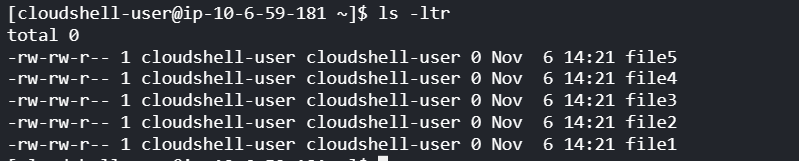
The ls -ltr command in Linux is used to list files and directories in long format (-l), sorted by modification time in reverse order (-t), so the most recently modified files or directories appear at the bottom of the list.
permission
link
owner
group owner
size of file
date and time of file creation
name of file
Permission group
Permission description
Owner(u) — Permissions of Owner
The Owner permissions apply only to the owner of the file or directory, they will not impact the actions of other users.
Group(g) — Permissions for the members of Group
The Group permissions apply only to the group that has been assigned to the file or directory, they will not affect the actions of other users.
Other(o) — Permission used by all Other users
All Users permissions apply to all other users on the system, this is the permission group that you want to watch the most.

Set permissions with a numeric value
read(r) = 4
write(w) = 2
execute(x) = 1

For giving read-write execute permission to the owner and others for file2.txt
sudo chmod 707 file2.txt

Permission Types
Each file or directory has three basic permission types:
read – Read permission refers to a user’s capability to read the contents of the file.
write – The Write permissions refer to a user’s capability to write or modify a file or directory.
execute – Execute permission affects a user’s capability to execute a file or view the contents of a directory.
Modifying the Permissions:
When in the command line, the permissions are edited by using the command chmod
sudo chmod 755 file1In this command, the owner has read, write, and execute permissions (4+2+1 = 7), and the group and others have read and execute permissions (4+1 = 5)

The chown command to used to change the ownership permission of a file or directory. the syntax is simple
chown owner:group filename
group — The group that owns the file or application.
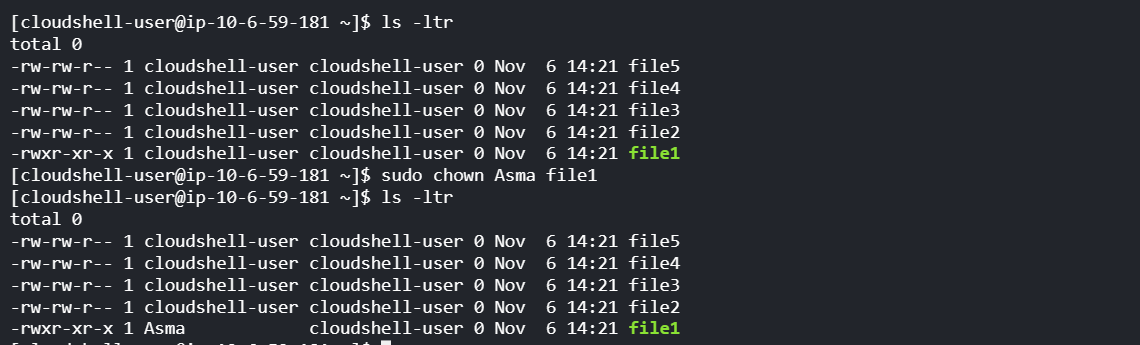
sudo chown Asma file1Here in this command we are changing the owner of file1 from cloudshell-user to Asma
In Linux, the chgrp command is used to change the group ownership of files and directories. It allows you to change the group associated with one or more files or directories.

sudo chgrp Developers file1Here in this command we changed the group of file1 to Developers.
Access Control List :
In organizations sometimes a member of testing team needs to access few files from devops team, so such situations can be tricky.
ACLs allow us to apply a more specific set of permissions to a file or directory without (necessarily) changing the base ownership and permissions. They let us "tack on" access for other users or groups.
getfacl
getfacl command is used to view the access control list (ACL) of a file or directory. ACLs provide more fine-grained permissions than traditional Unix file permissions.
Read about ACL and try out the commands
getfaclandsetfacl
setfacl
In Linux, the
setfaclcommand is used to set Access Control Lists (ACLs) on files and directories.setfacl -m u:user:permissions filenamesudo setfacl -m u:Asma:rw file1
Conclusion
File permissions play a crucial role in the Linux ecosystem, enabling users to control access and secure their files and directories.