Linux Shell Scripting
Linux Kernel
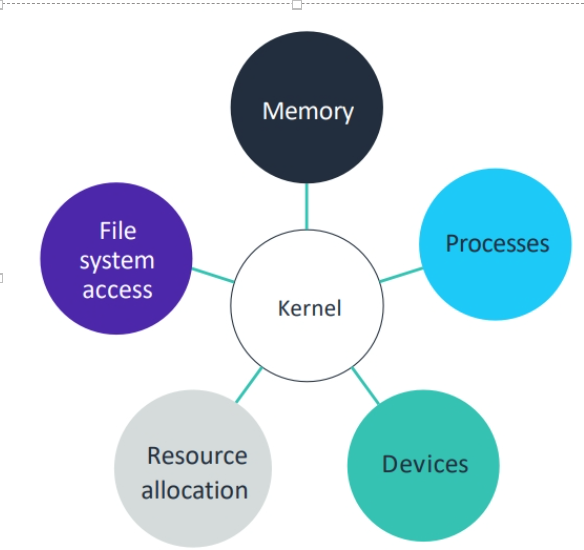
Kernel manages the running of multiple applications and the sharing of resources among multiple users.
It controls the interface which manages I/O devices that are connected to the system and also manages file and directories.
Shell :
The shell is a user program or it is an environment provided for user interaction. Shell is a command language interpreter that executes commands read from the standard input device such as a keyboard or from a file.
The shell gets started when you log in or open a console (terminal). Quick and dirty way to execute utilities. The shell is not part of the system kernel, but uses the kernel to execute programs, create files and interacts with hardware.
Different kinds of Shell:
BASH(Bourne Again SHell): It is the default shell of Linux, it is open source
CSH(C SHell)- The C Shell's syntax and usage are very similar to the C programming language.
KSH(Korn SHell) and TCSH are a few other shells
Shell Prompt
There are various ways to get shell access:
Terminal - Linux desktop provides a GUI-based login system. Once logged in you can gain access to a shell by running X Terminal (XTerm), Gnome Terminal (GTerm), or KDE Terminal (KTerm) application.
Connect via secure shell (SSH) - You will get a shell prompt as soon as you log in to a remote server or workstation.
Use the console - A few Linux systems also provides a text-based login system. Generally, you get a shell prompt as soon as you log in to the system.
What is Shell Scripting:
A shell script is a file that contains series of commands. Shell can also take commands as input from file and execute those as they are directly written on the command line.
The shell script extension is .sh Shell script has syntax just like any programming language such as Python, C, C++.
To create a shell script you have to use an editor, we will use vim editor, vim or vi is a command line editor. Gedit is a GUI editor
To create a Shell Script follow the steps:
Step 1: Use any editor vim or gedit to write shell script
Syntax: vim first_script.sh
Step 2: Permit to execute the file
Syntax: chmod <<permission>> <<filename.sh\>>
chmod 755 first_script.sh
This will set the permission read, write, execute (7), for group and others permission is being read and execute (5)
Step 3: Execute the script as
Syntax: bash first_script.sh
Or ./first_script.sh
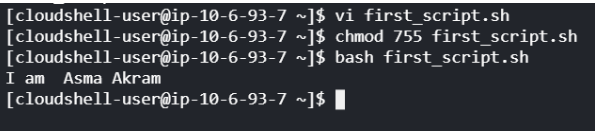
Different ways to run the shell script
Task 1:
Question: What is #!/bin/bash? can we write #!/bin/sh as well?
Answer: #! /bin/bash is called a shebang, it tells the shell what program to interpret the script with, when executed.
In our example, the script is to be interpreted and run by the bash shell. If you do not specify the shell it will take the default shell as /bin/sh
Task 2:
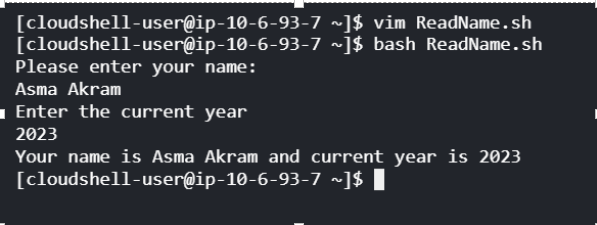
Question: Write a Shell Script to take user input, input from arguments and print the variables.
Answer: In some scripts, we need to take the input from the user and it can be done with the help of the "read" command
#! /bin/bash
echo "Please enter your name: "
read userName
echo Enter the current year
read year
echo Your name is $userName and current year is $year
Task 3: Write an Example of If else in Shell Scripting by comparing 2 numbers
Answer: if Control commands
Syntax:
if [condition]
then
statement1
else
statement2
Fi
Here in the script we are entering the value of two variables A and B, with the help of If condition we are checking if both the variables are equal, in our case the variables are different so we are getting output as Both numbers are different
#!/bin/bash
a = 100
b = 200
if [ $a -eq $b ]
then
echo "Both numbers are the same"
else
echo "Both numbers are different"
Fi